此内容尚不支持你的语言。
Categories (Admin panel › Categories) controls the workflow categories people browse on the Marketplace.
The list shows each category’s icon, label and description, its Slug, the number of Workflows, its Order, Tags and Color. Search by label or filter by tag.
Create a category
Section titled “Create a category”Click New category, then fill in the dialog:
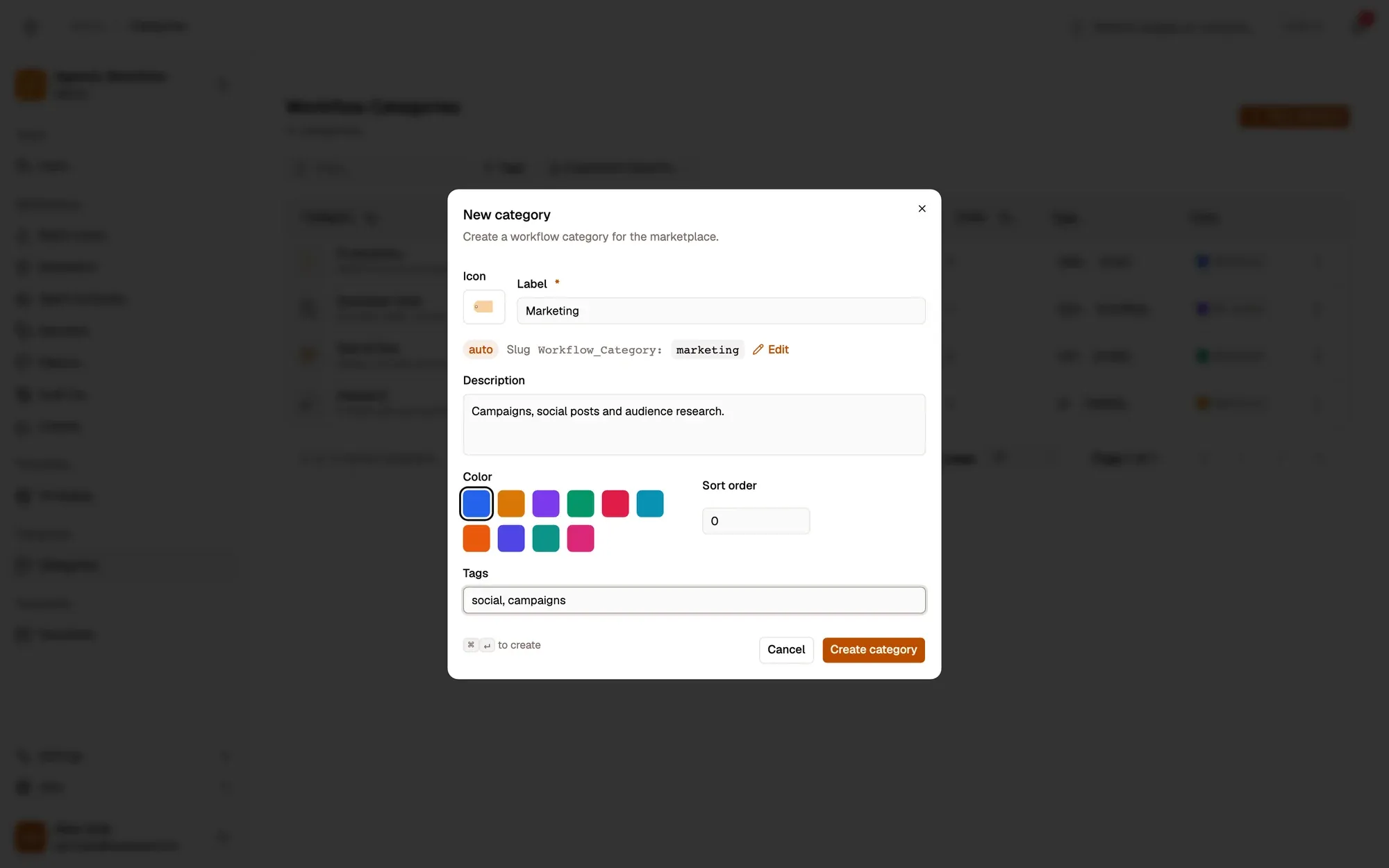
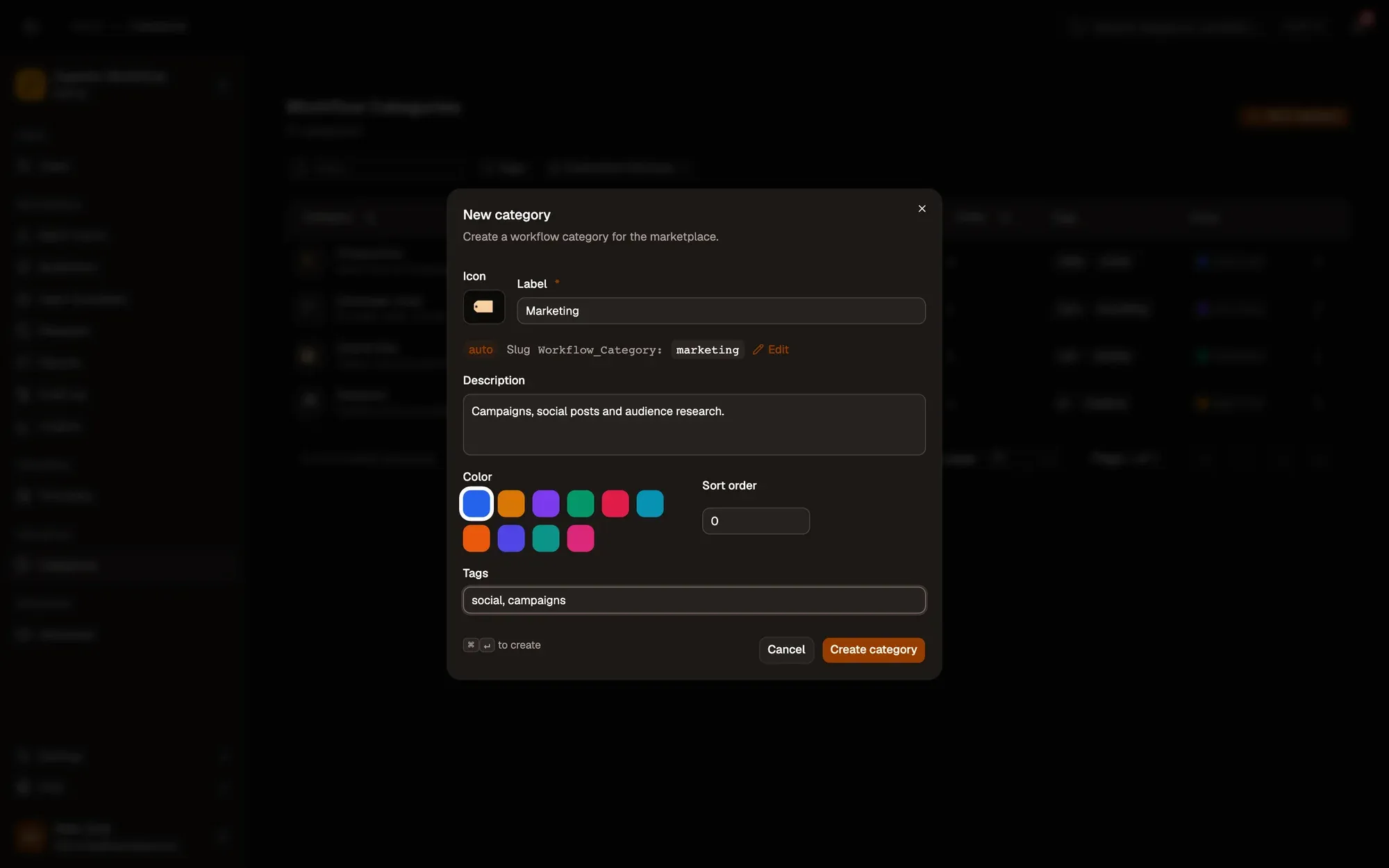
截图中的编号区域:1. Icon; 2. Label; 3. Slug, filled in from the label; 4. Description, color, sort order and tags; 5. Create category。
The new category’s page opens. If the slug is already taken, you are told so.
Edit a category
Section titled “Edit a category”Click a category, or use ⋮ › Edit. The Details tab lets you change everything except the slug. Click Save changes, or Reset to undo your edits.
Choose its workflows
Section titled “Choose its workflows”Open the Workflows tab (or ⋮ › Manage workflows):
- Add workflows opens a search of published workflows. Tick the ones you want and click Add workflows.
- The X on a row removes that workflow from the category straight away.
Delete a category
Section titled “Delete a category”Deleting removes the category from the Marketplace and unlinks its workflows. The workflows themselves are not deleted.
- From the list, ⋮ › Delete asks you to confirm.
- From the category page, Danger zone › Delete category asks you to type the slug first.