此内容尚不支持你的语言。
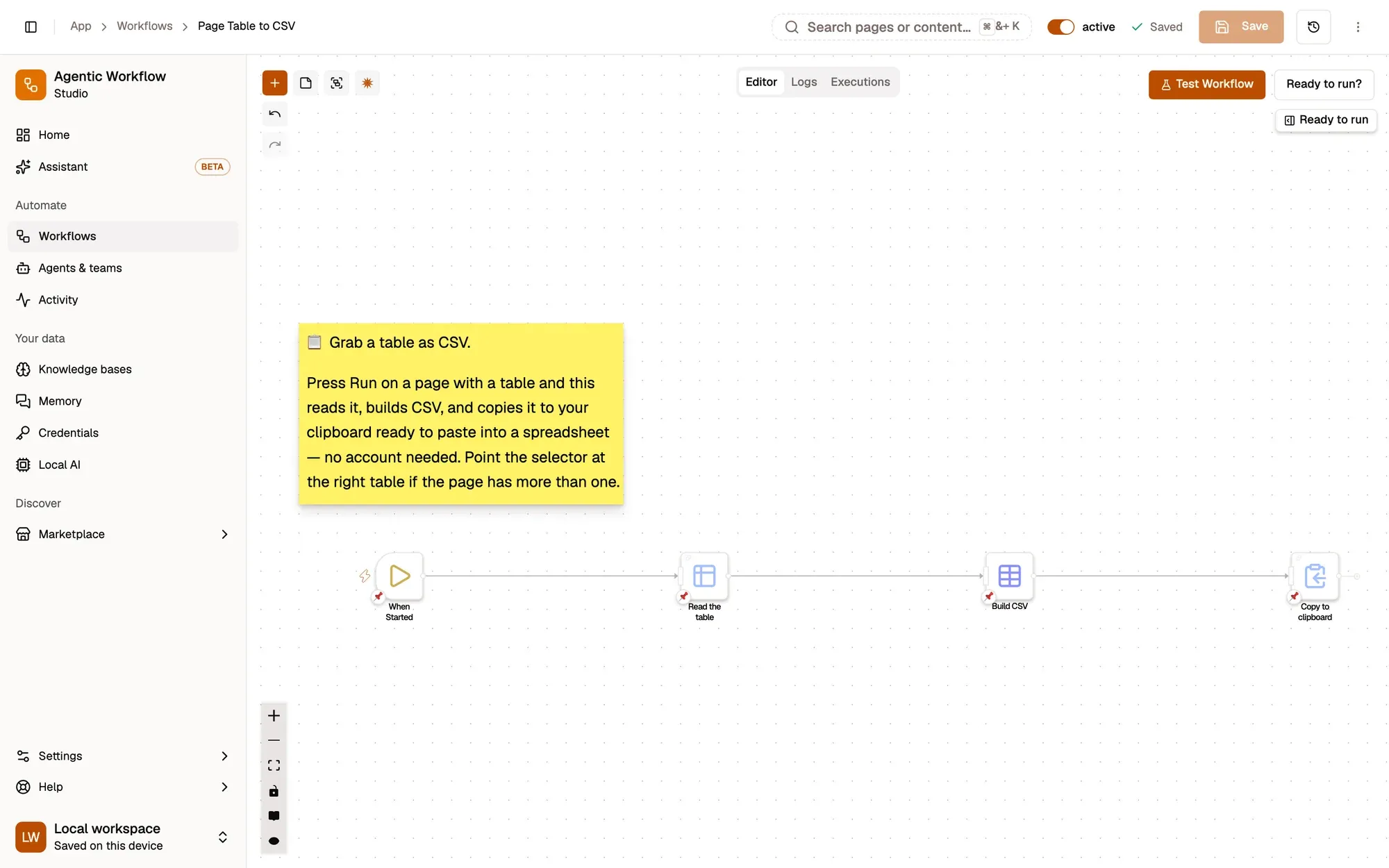
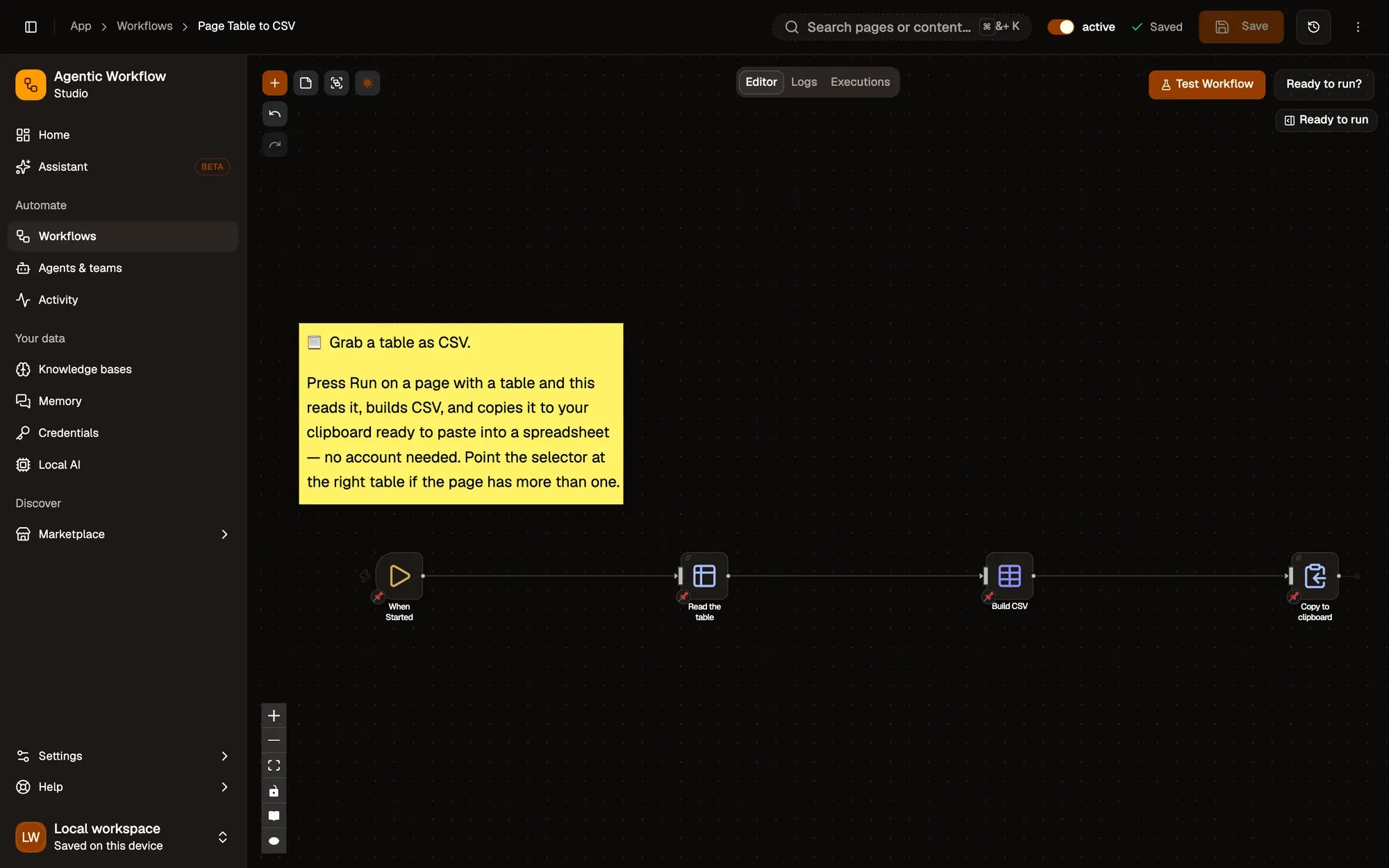
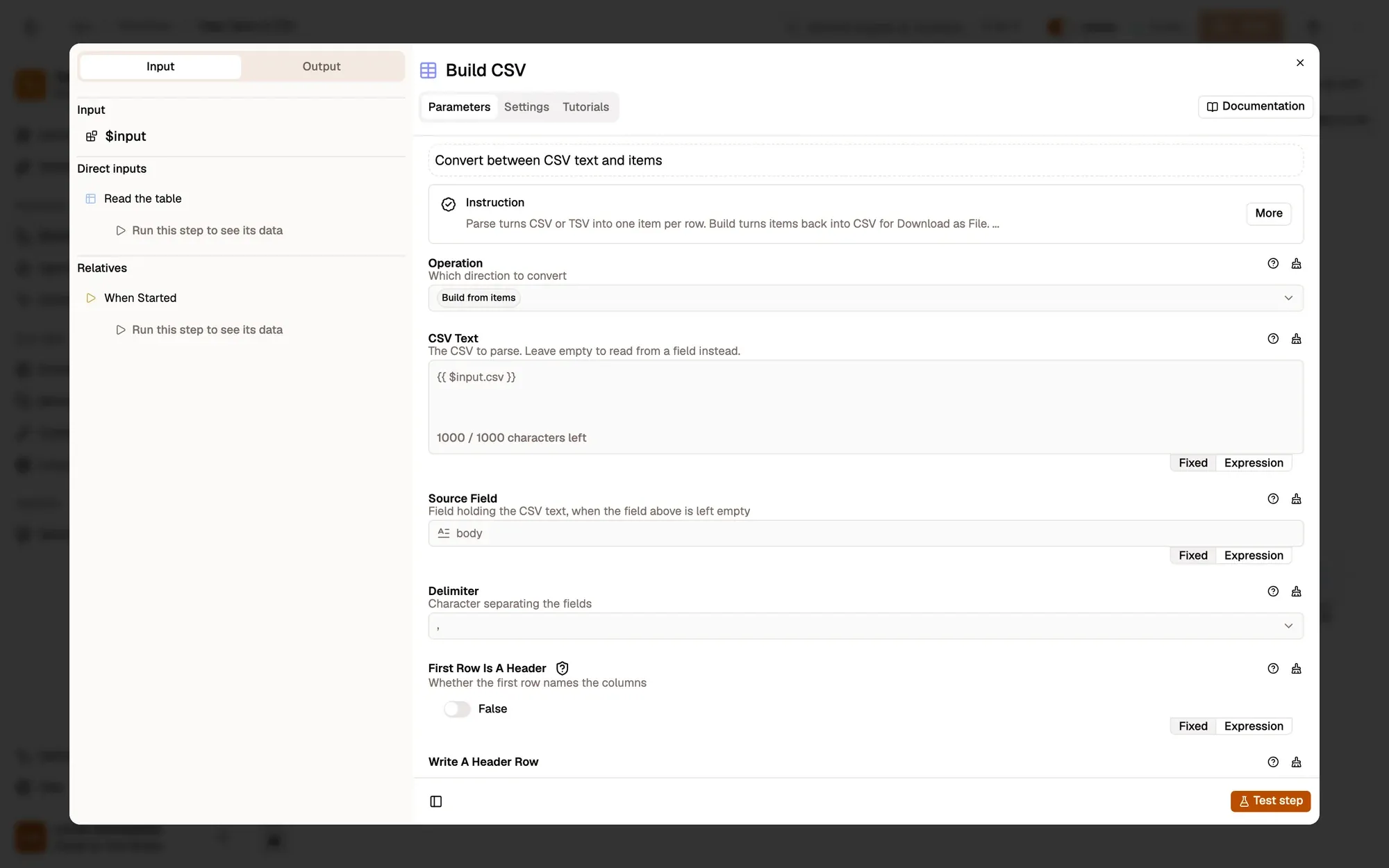
Page Table to CSV:包含 4 个步骤的工作流,从 When Started 开始,到 Copy to clipboard 结束。
How it works
Section titled “How it works”-
Run it on the page
When Started has no settings; run it from the right-click menu on the page with the table.
-
Read the table
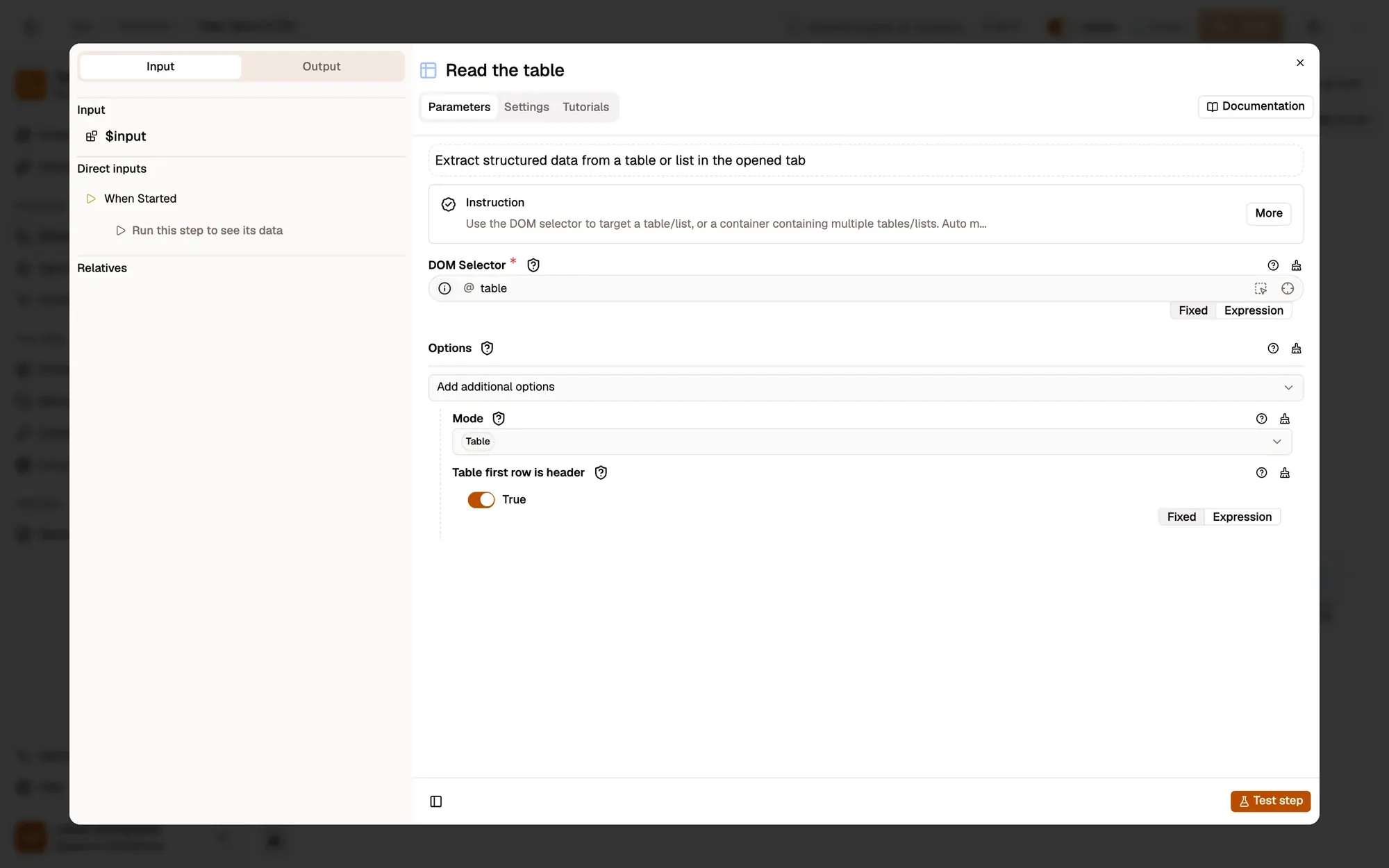
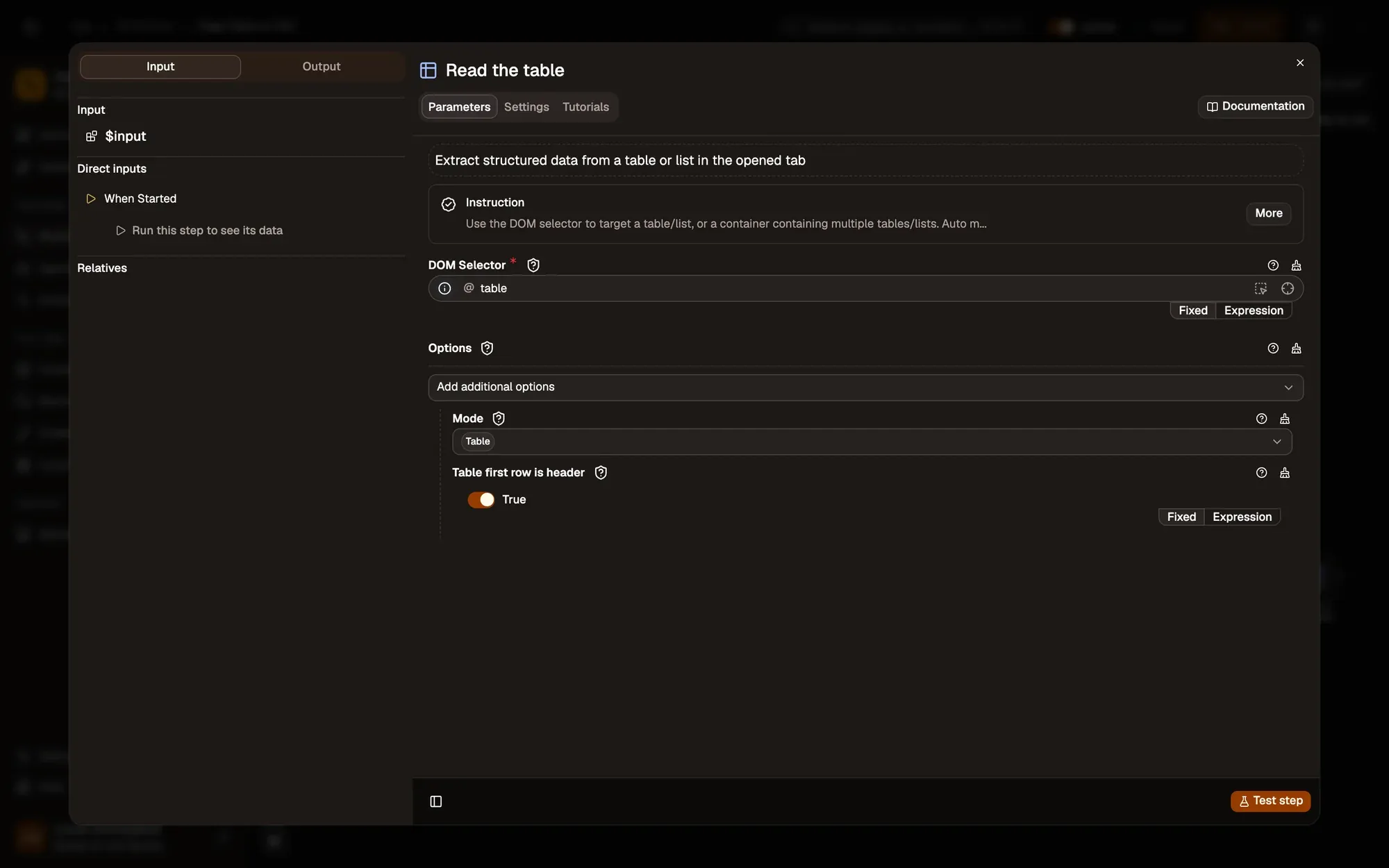
Get Structured Data in table mode reads the first
tableon the page, one item per row, using the first row as the column names.按需调整 — set DOM Selector to the table you want, such as
#results table, when the page has several. -
Copy it
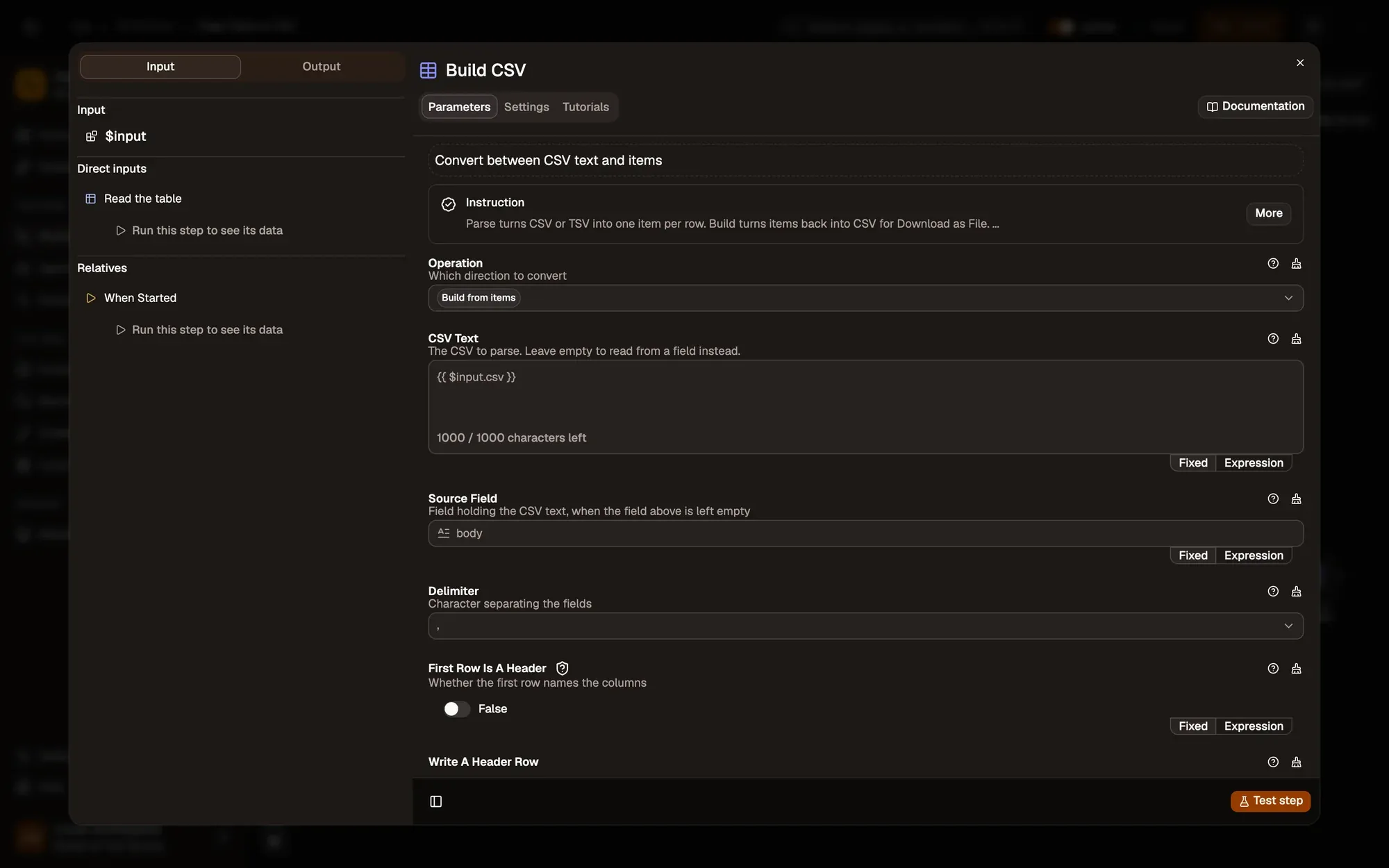
Clipboard Write copies the CSV, ready to paste into Google Sheets, Excel or Numbers.
按需调整 — download a
.csvfile with Save as File instead.
Test it
Section titled “Test it”-
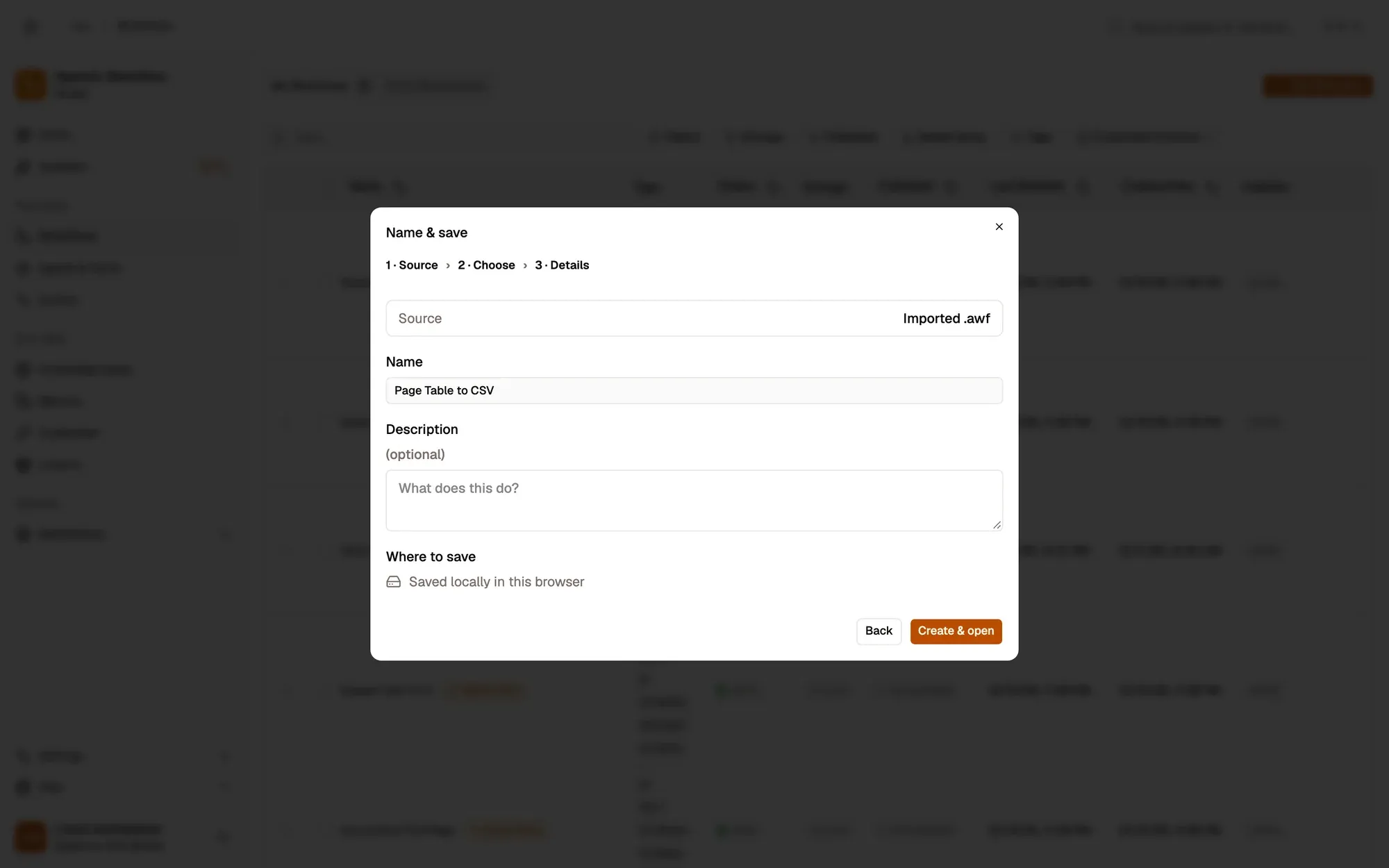
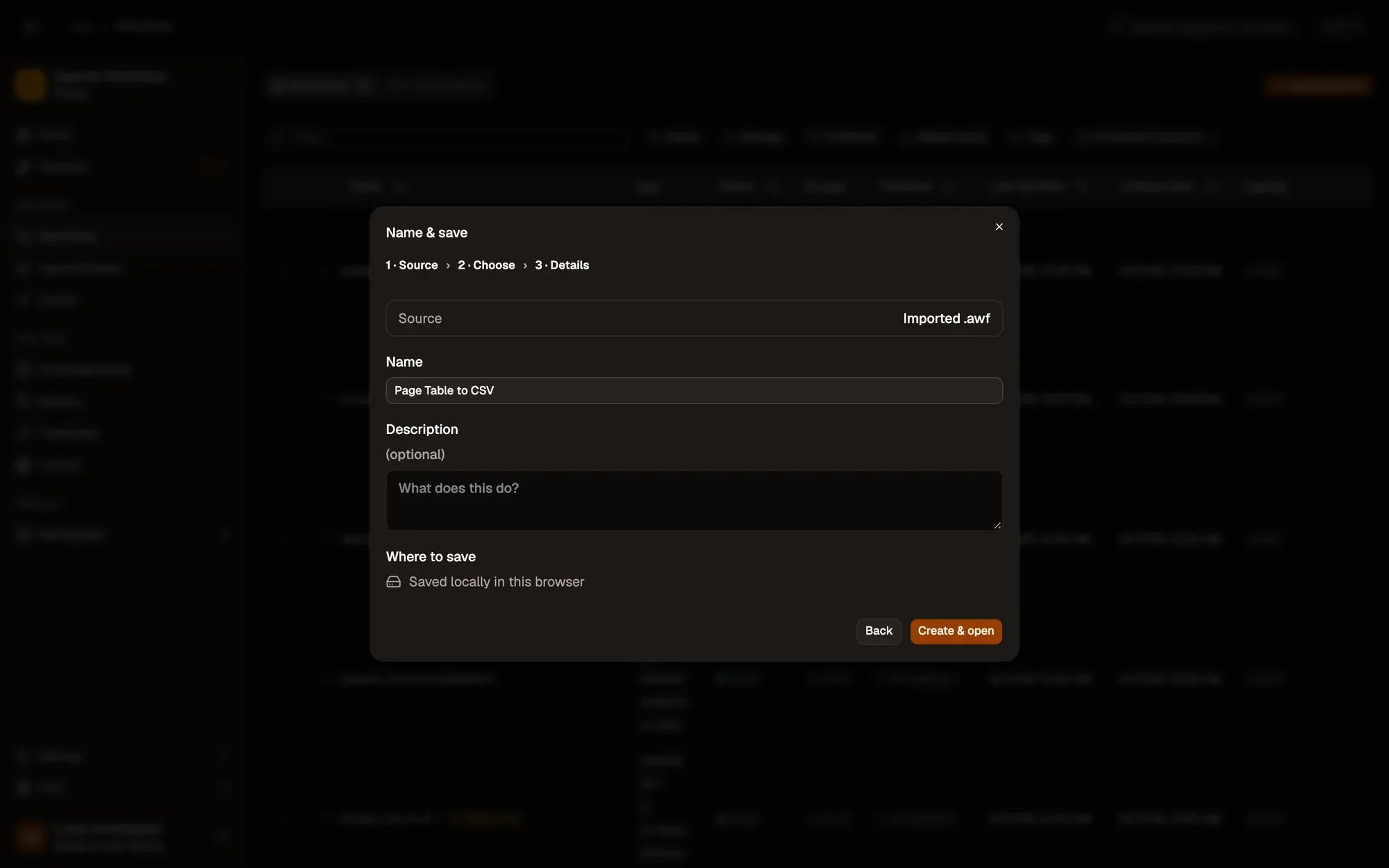
Install the recipe and save it. No setup is needed. To import the file yourself, use Add Workflow › Import, choose the
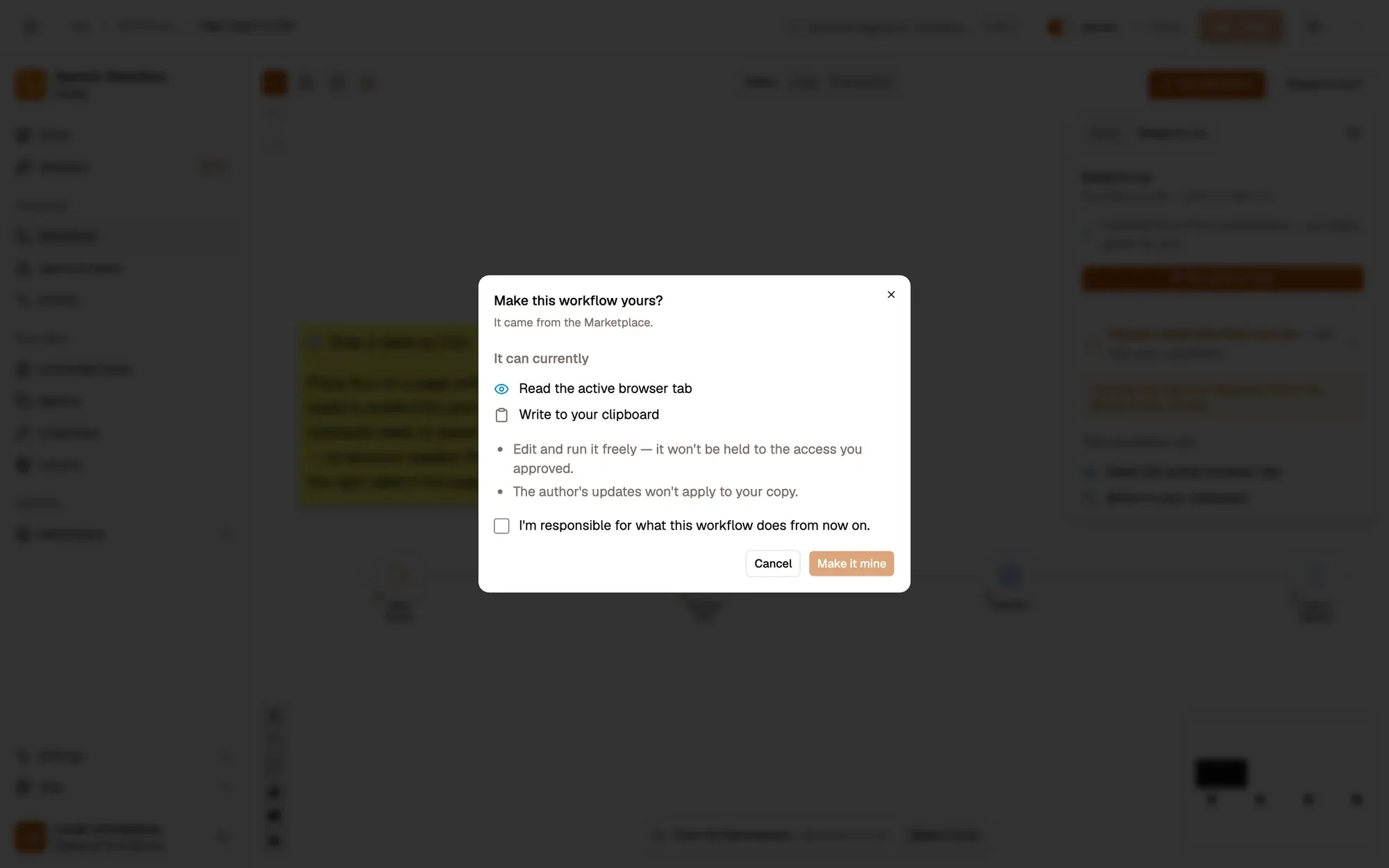
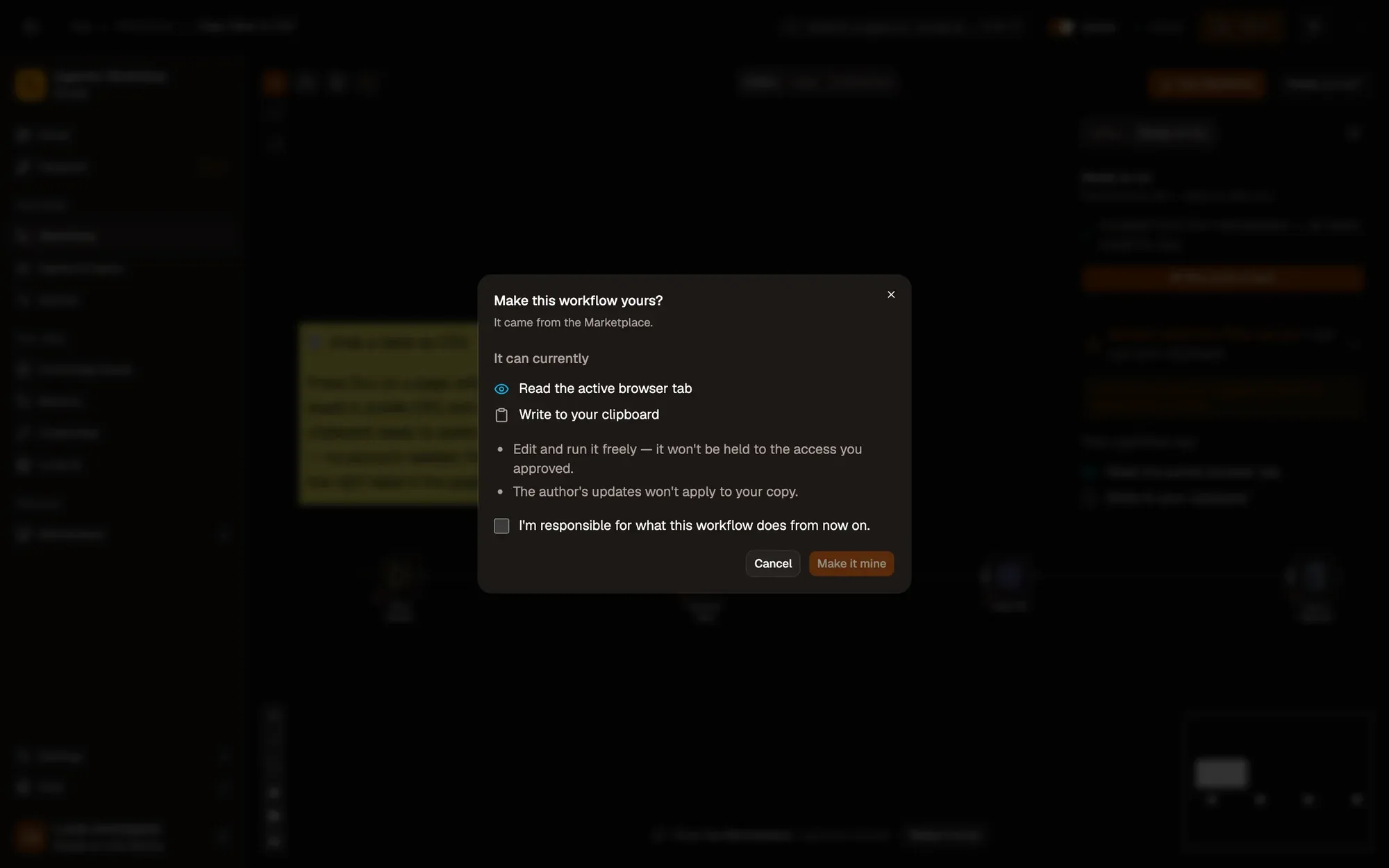
.awfand click Create & open. Then click Make it mine at the bottom of the canvas, tick the box and confirm, so you can edit it. -
Open a page with a table, such as a Wikipedia list.
-
Right-click it and choose Agentic Workflow › Personal Workflows › Page Table to CSV.
-
Paste into a new spreadsheet: each column lands in its own cell.
Variations
Section titled “Variations”| Variation | What to change | Level |
|---|---|---|
| Send rows to a sheet | Replace CSV and Clipboard Write with Google Sheets Append. | Intermediate |
| Keep only some rows | Add Filter or Sort between the table and the CSV. | Beginner |
| Lists instead of tables | Set Get Structured Data Mode to list for ul or ol lists. |
Beginner |
Troubleshoot
Section titled “Troubleshoot”- The wrong table is copied. The page has several tables. Set DOM Selector to the one you want; the data extraction guide shows how to find a selector.
- Column names are the first data row. The table has no header row. Turn off Table first row is header.
- Nothing is copied. Run it from the right-click menu on the page itself, not from the canvas.