Dieser Inhalt ist noch nicht in deiner Sprache verfügbar.
Edit a credential when a token expires or is replaced, a password changes, or you want a clearer name. Every node and workflow that uses it picks up the change: you don’t re-select it anywhere.
Edit a credential
Section titled “Edit a credential”Open Credentials in the sidebar. On the credential’s row, open the ⋯ menu and click Open: the Edit Credential form opens. Hover or tap a step to find it on the screen.
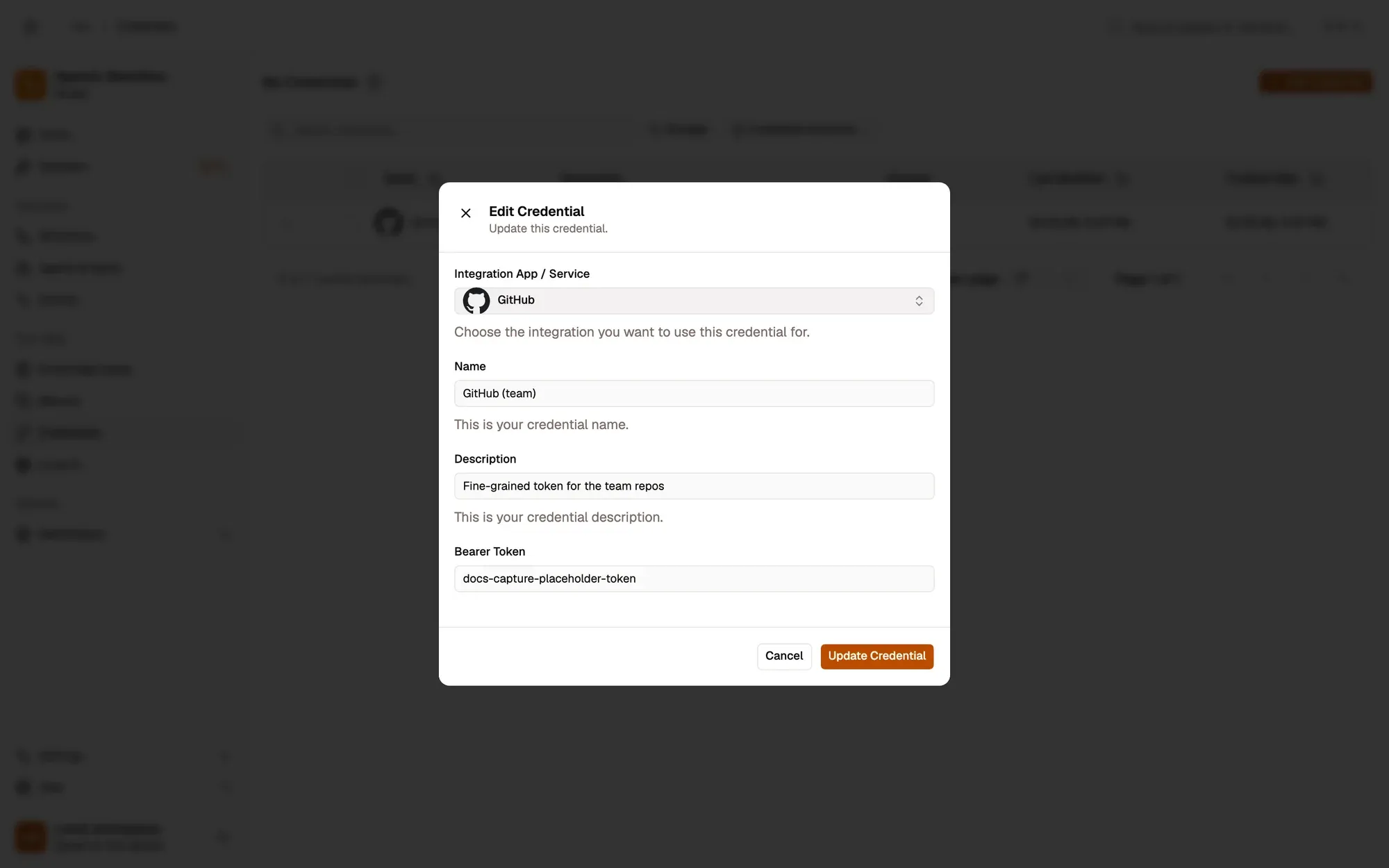
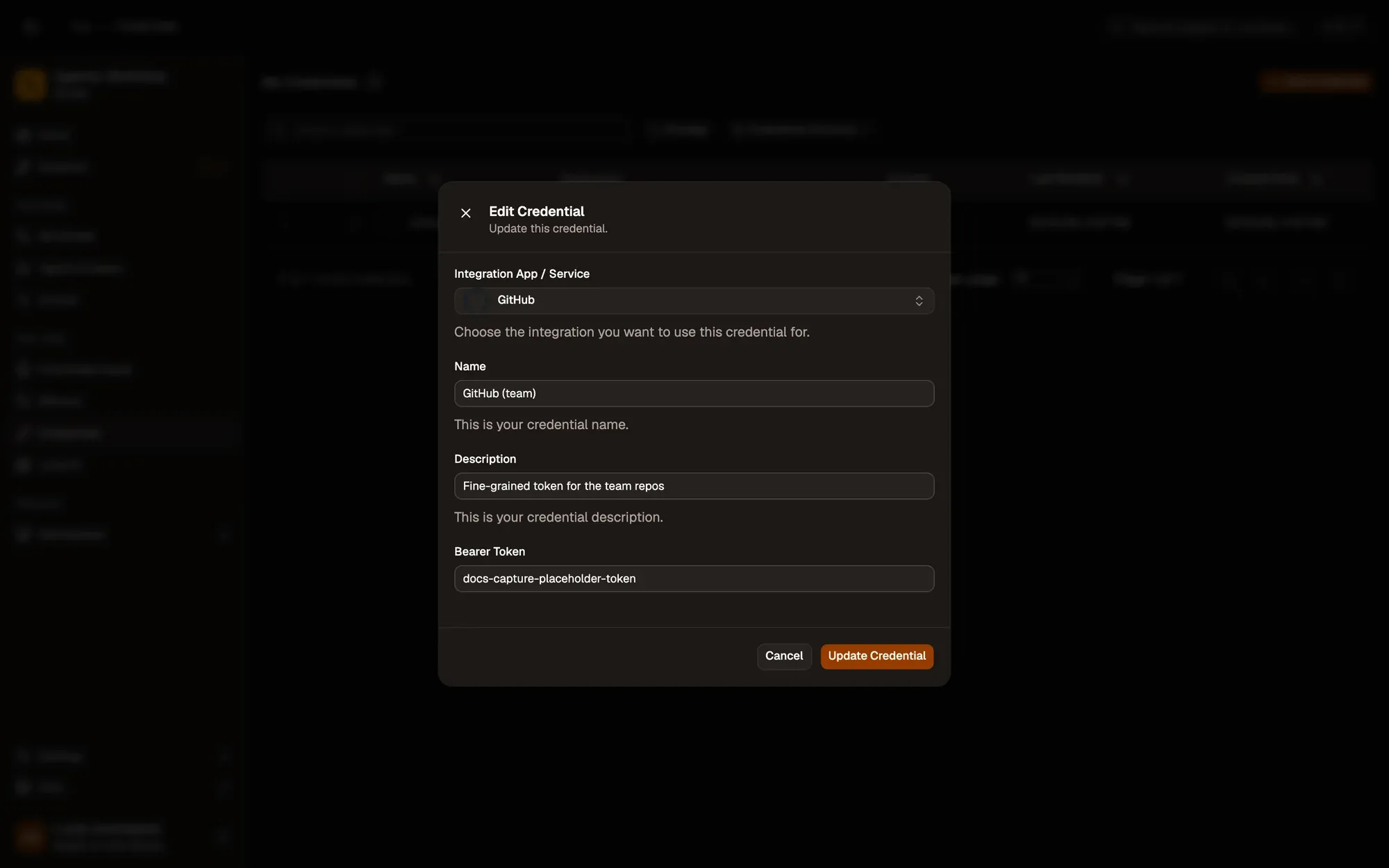
Nummerierte Bereiche im Screenshot: 1. Name and description; 2. Description; 3. Secret fields: here, the token; 4. Update Credential.
Move it between this browser and your account
Section titled “Move it between this browser and your account”In the same ⋯ menu, Move to cloud stores the credential encrypted on your AWFlow account, so you can use it on your other devices. Move to local brings it back into this browser only. See Local or cloud.
Delete a credential
Section titled “Delete a credential”Choose Delete in the ⋯ menu and confirm. Workflows that used it stop at that step until you pick another credential.
If it still fails after editing
Section titled “If it still fails after editing”- Run one step that uses it with Test step: the error names the problem, for example a missing scope.
- Check the service’s own dashboard: the token may be revoked, or the account over its rate limit.
- Open the service’s connection page for the list of common errors.